![GTA-Full-white-logo-wo-strapline-RGB.png]](https://www.gta.net/hs-fs/hubfs/Logos/GTA-Full-white-logo-wo-strapline-RGB.png?height=40&name=GTA-Full-white-logo-wo-strapline-RGB.png)
Key Benefits
- Expanded Coverage: Make crystal-clear calls even with zero cellular bars.
- No Extra Fees: Calls use your existing plan minutes and monthly limits.
- No Apps Needed: Use your standard phone dialer and regular phone number.
- Battery Friendly: Connecting to Wi-Fi uses less power than searching for faint cell signals.
How to Turn On Wi-Fi Calling
Before you begin, ensure your phone is VoWiFi compatible and is connected to a local Wi-Fi network.
For Apple iPhone Users
- Open the Settings app.
- Scroll down and tap Apps, then select Phone.
- Tap on Wi-Fi Calling.
- Toggle the Wi-Fi Calling on This Phone switch to On.
- Follow the prompts to enter your emergency address.
For Android & Samsung Users
- Open your Settings app and tap Connections (or Network & Internet).
- Look for Wi-Fi Calling.
- Toggle the switch to On.
- Review the terms and enter your emergency address when prompted.
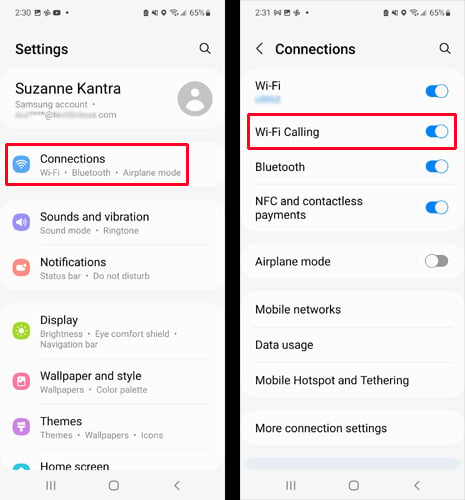
Note: Steps may vary slightly depending on your phone's manufacturer. Try searching "Wi-Fi Calling" in your Settings search bar if you cannot find it.
Frequently Asked Questions
Does it use my regular data package?
No. Wi-Fi Calling relies strictly on internet bandwidth and does not consume your cellular data package.
How do I know if a call is using Wi-Fi?
Look at the status bar at the top of your screen during a call. You will see a small phone icon next to a Wi-Fi symbol, or the words Wi-Fi next to your carrier's name.
What is the "Emergency Address" prompt?
Emergency calls automatically use the cellular network when it is available. If there is no cellular service, emergency services will try to find you using nearby Wi-Fi network data. If that is also unavailable, they will use the registered address you provided. This address must be a physical location in the domestic coverage area, not a P.O. Box. Please update your registered address whenever you change locations.
What happens if I walk away from the Wi-Fi?
If you move out of your Wi-Fi network's range, your smartphone will attempt to switch to cellular and continue seamlessly.
However, if you leave a Wi-Fi area, your call will drop if you are not in a coverage area your phone will hand the call off to the cellular network and continue seamlessly, as long as you are in an area with cellular coverage. If no cellular signal is available, the call will drop.
How is Wi-Fi Calling billed?
Calls are billed based on the number you are calling.
- Calls to local numbers can be made at no additional charge and is based on your plan’s voice package.
- International calls are billed at our long-distance rates.
Tip: To avoid surprise charges, confirm your local, long distance, and roaming features before placing calls over Wi‑Fi, especially while traveling outside the domestic coverage area.
Quick Troubleshooting
If Wi-Fi Calling is enabled but not working:
- Verify Connection: Ensure you have a stable internet connection.
- Toggle Airplane Mode: Turn Airplane Mode on for 10 seconds, then off to refresh network settings.
- Update Software: Check for system updates, as outdated software can cause issues.