![GTA-Full-white-logo-wo-strapline-RGB.png]](https://www.gta.net/hs-fs/hubfs/Logos/GTA-Full-white-logo-wo-strapline-RGB.png?height=40&name=GTA-Full-white-logo-wo-strapline-RGB.png)
Watch this short video on how to setup your home network with the Service Delivery Gateway.
Before you set up your system for the first time:
- Connect the internet modem or ONT to the Controller.
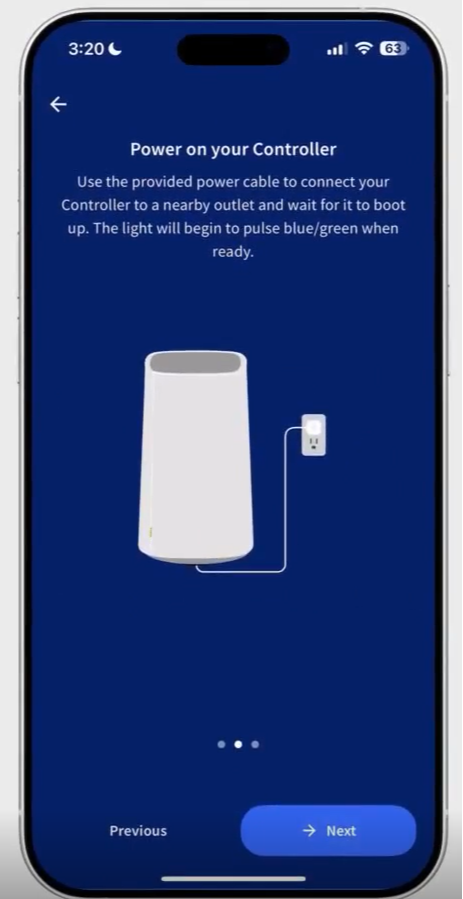
- Power ON your controller.
- To set up the system for the first time, check that the Controller is pulsing Blue/Green.
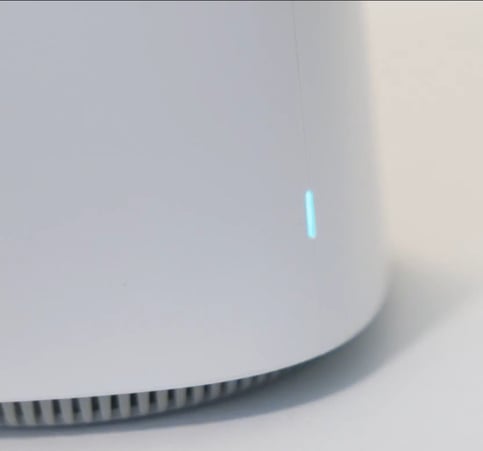
- To set up the system for the first time, check that the Controller is pulsing Blue/Green.
Getting Started:
-
Click the Get Started button and follow the steps to add the Controller.
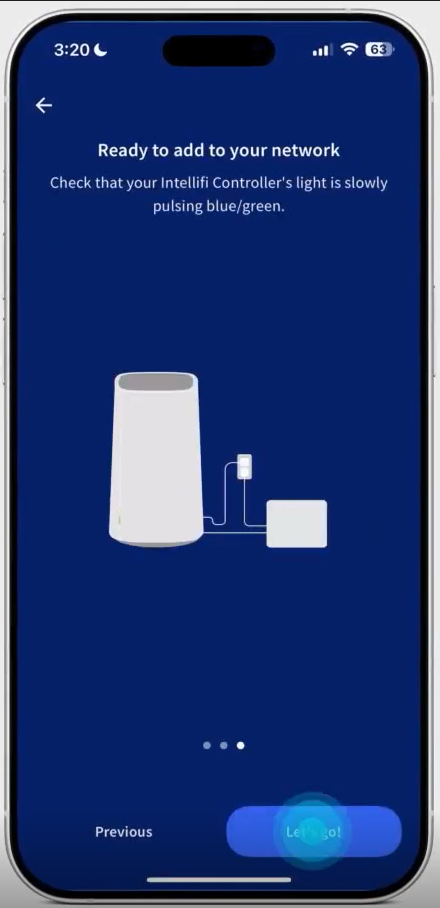
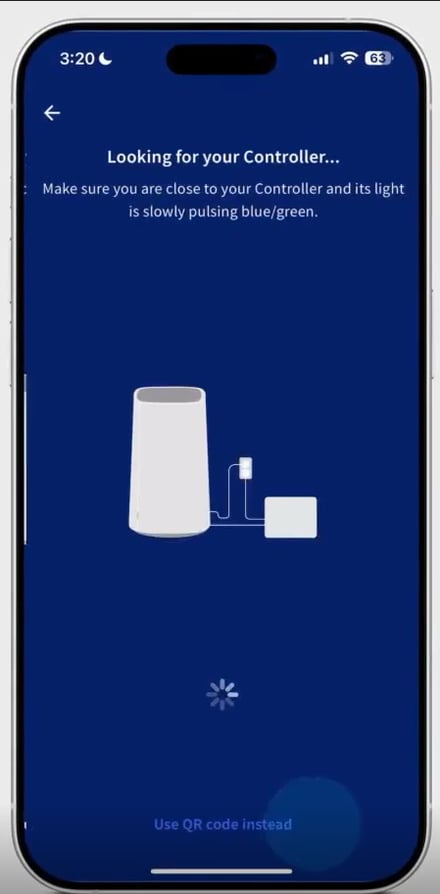
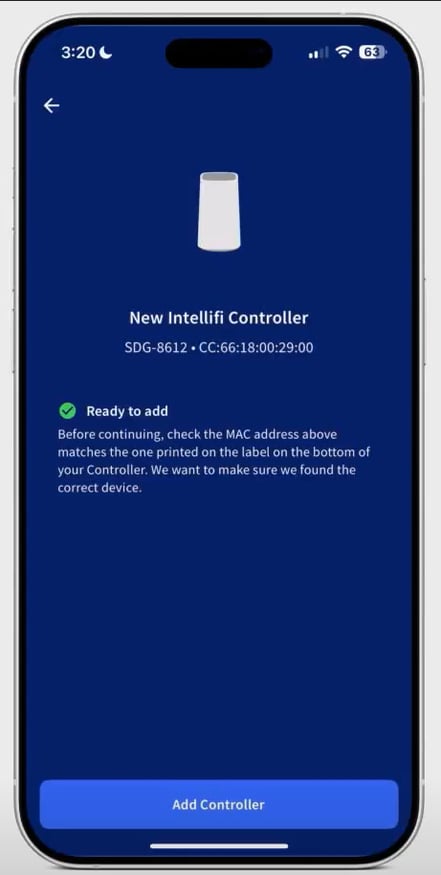
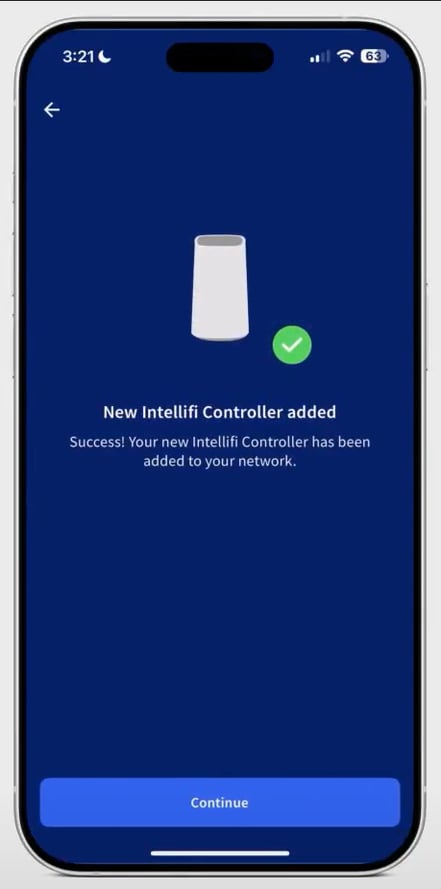
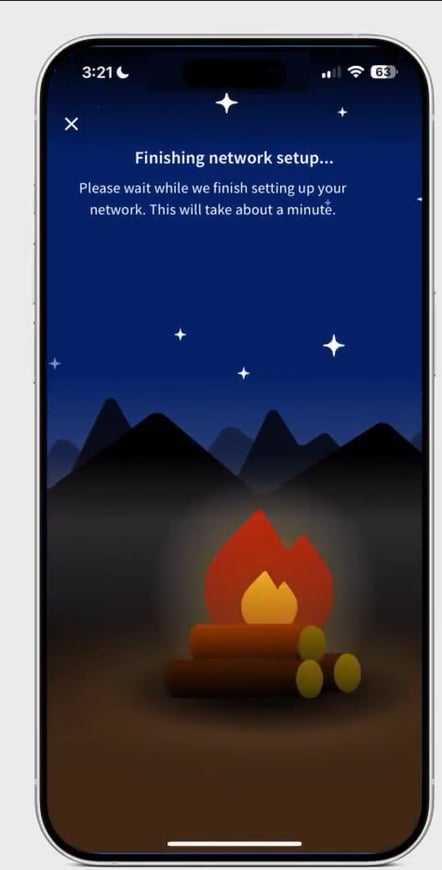
-
Input your WiFi network name and password, then select Continue.
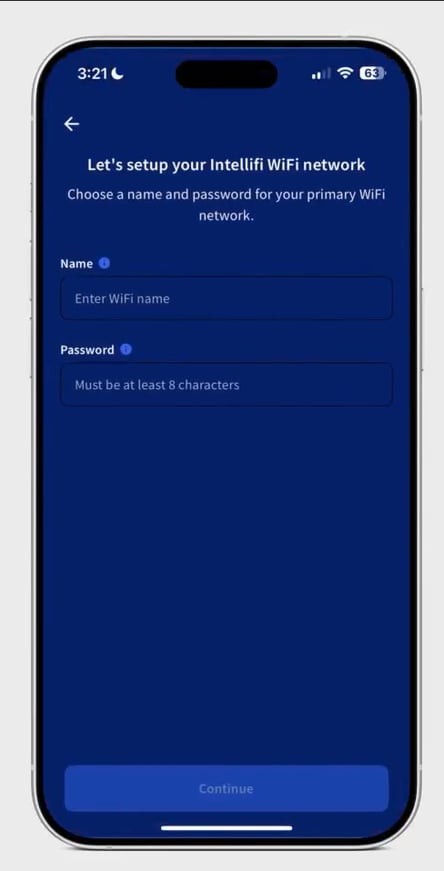
-
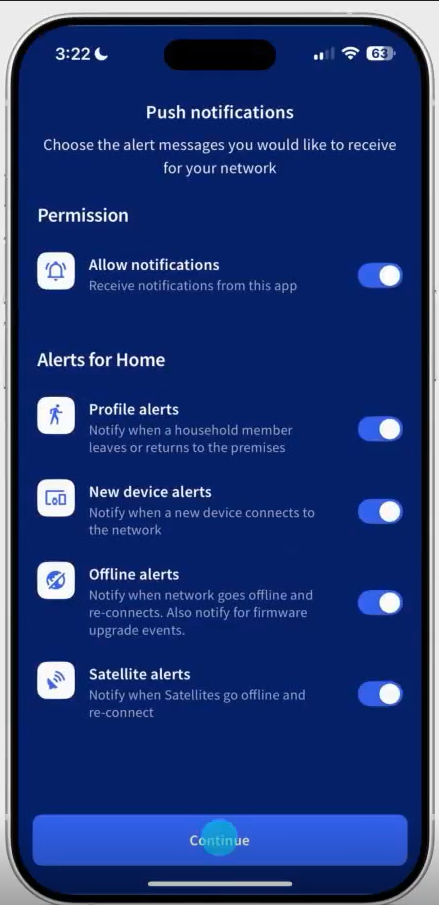
Set up Push Notifications to choose the alert messages you would like to receive for your network.
-
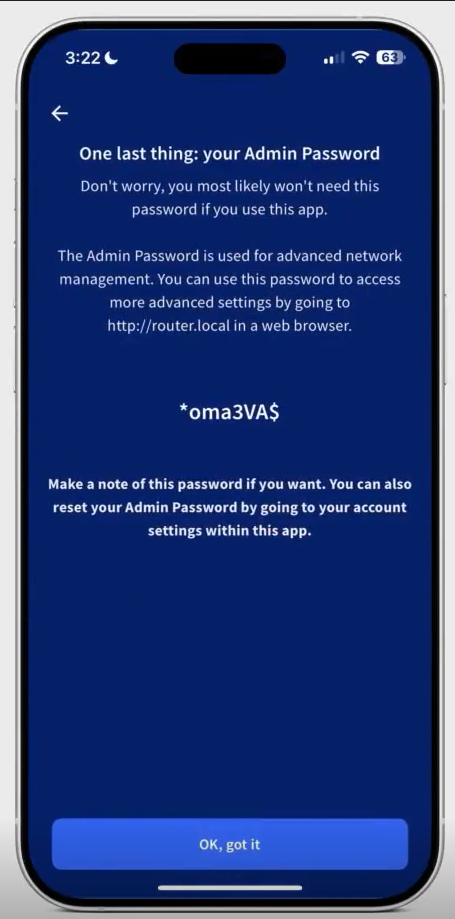
An Admin password will be generated, if needed for future use/account security confirmation.
-
You can reset your Admin Password by going to your account settings within the Intellifi app.
-
Add Satellite(s)
Satellites are a mesh extender or remote access point. Satellites are placed throughout a property to eliminate dead zones and expand coverage. 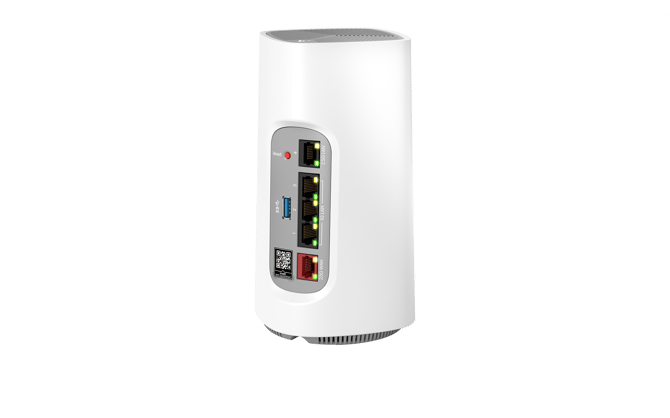
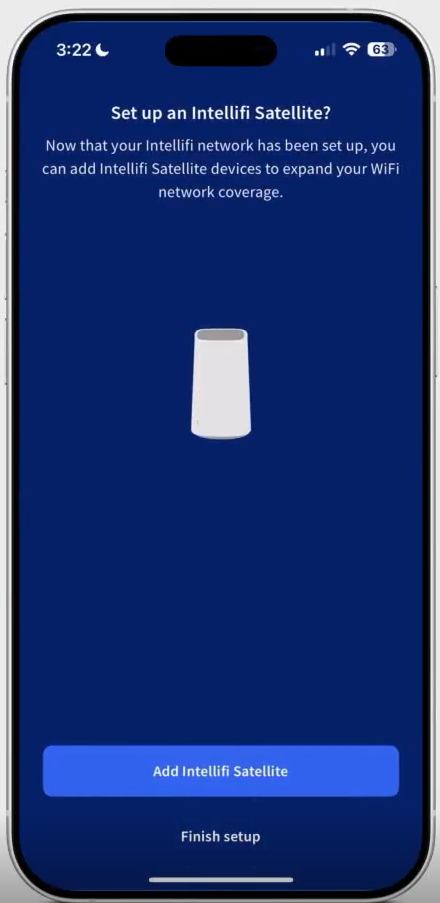
After successfully setting up your Controller, the app will prompt you to set up a Satellite. If you do not have a Satellite, you can skip this step.
- Find a power outlet close by the Intellifi Controller and plug in your Satellite.
- When the light on your satellite starts to pulse Blue/Green, you're ready to continue.
- Select the Satellite and tap "Yes, add".
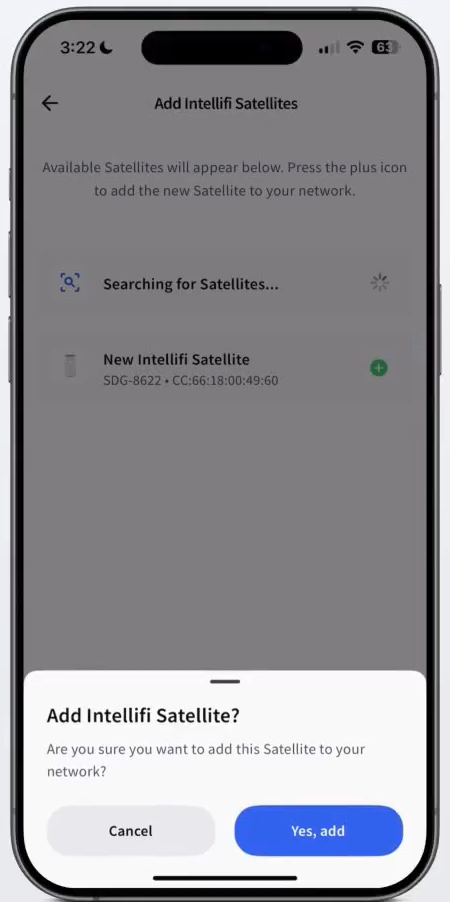
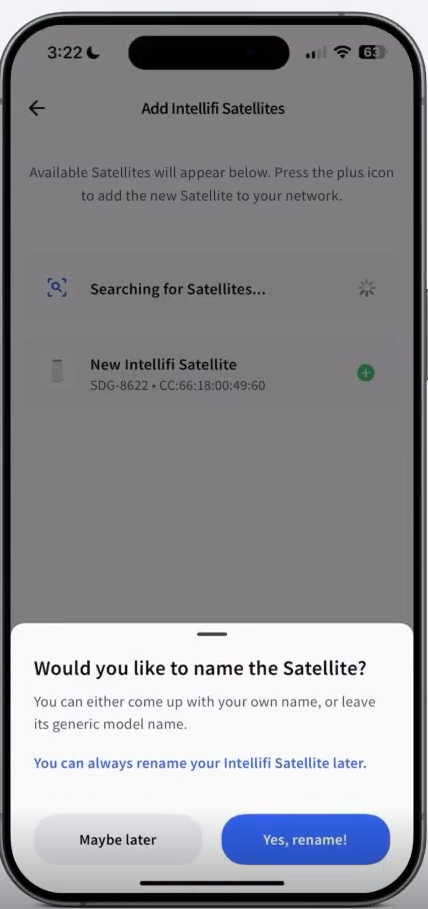
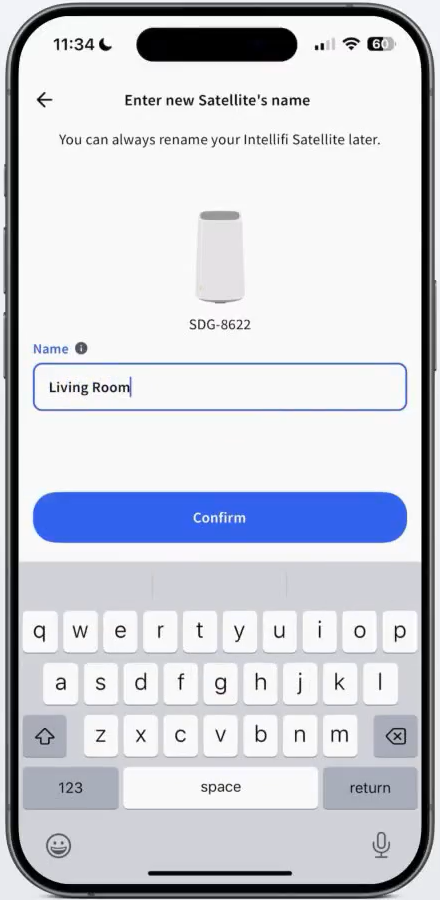
- During this process, you may choose to rename the Satellite.
- Simply follow the on-screen prompt or skip it to keep the default name of the satellite.
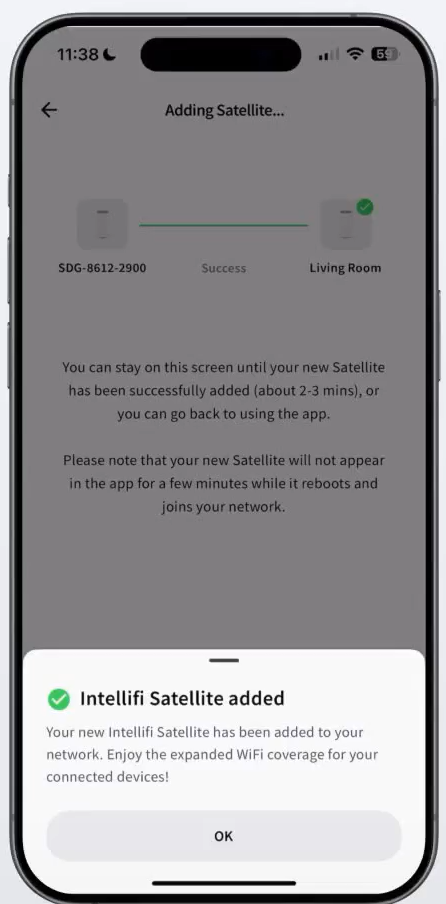
- Once confirmed, you should receive the notification that the Satellite has been added successfully.
- Wait 1-2 minutes for the LED to turn a solid White.
- Simply follow the on-screen prompt or skip it to keep the default name of the satellite.
Once you've added your Intellifi Controller and Satellite, you're ready to check speeds, view connected devices, add devices, and view top users all from the Home screen.
Run Speed Test
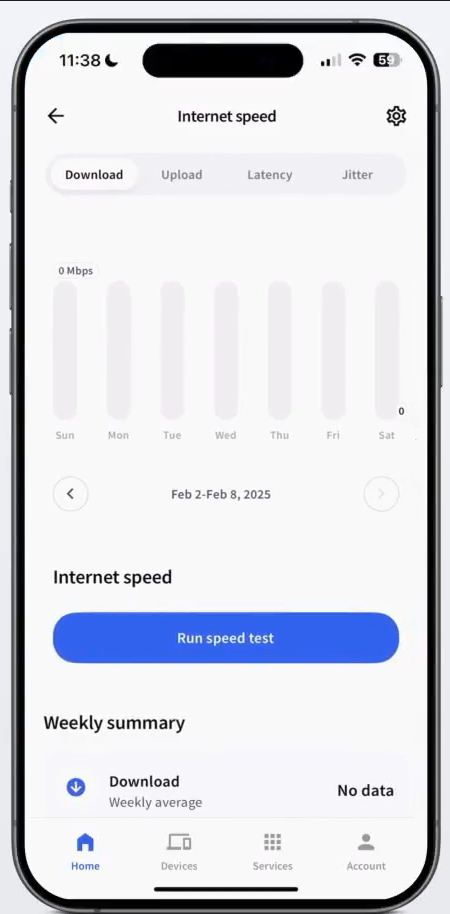
To check your internet speed, simply go to the Home page and tap Speed. 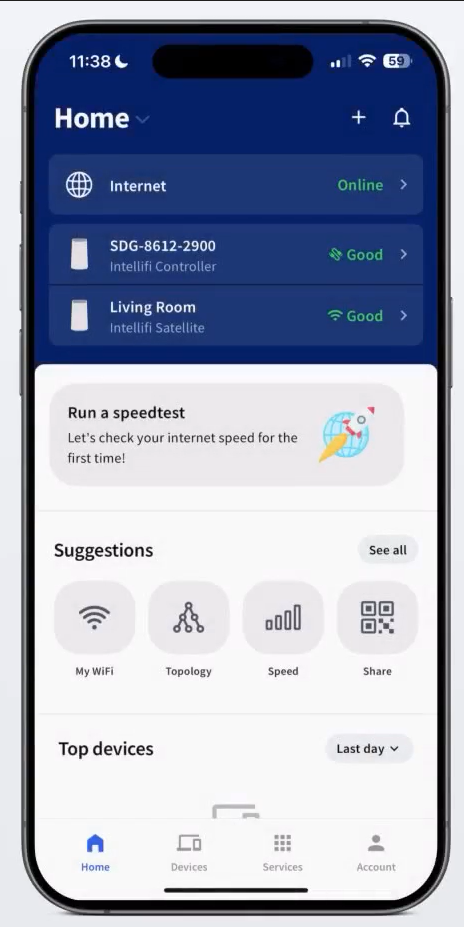
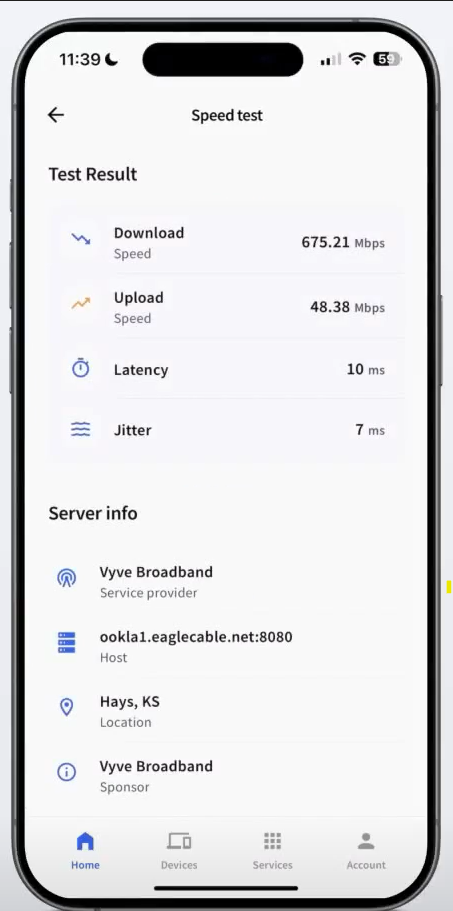
- Tap Run internet speed test and check latency to ensure lag-free gaming.
Adding devices to your network
- To add devices to your Wi-Fi network, click on the Share button on the Home page.
- You can add a device to your network by scanning the QR code and connecting automatically.
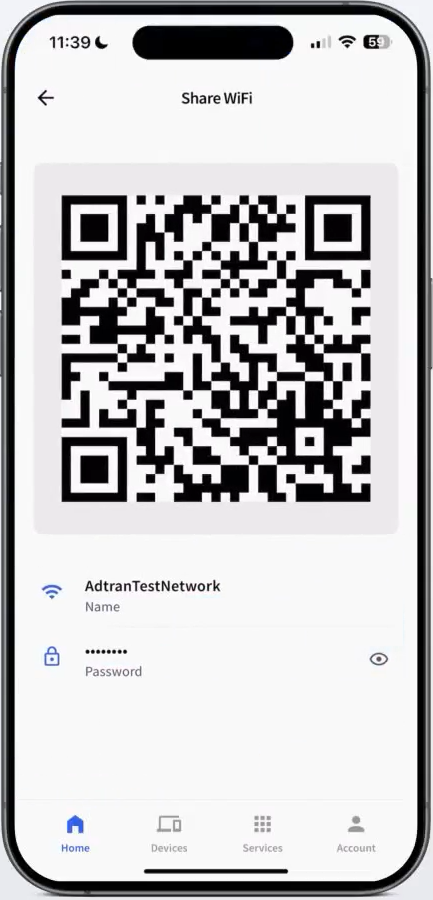
- Or you can reveal the hidden password to type it directly into your device.
- You can add a device to your network by scanning the QR code and connecting automatically.
For more details on creating profiles and viewing network usage, please click on the related article [Intellifi App: Creating Profiles and Viewing Network Usage].