![GTA-Full-white-logo-wo-strapline-RGB.png]](https://www.gta.net/hs-fs/hubfs/Logos/GTA-Full-white-logo-wo-strapline-RGB.png?height=40&name=GTA-Full-white-logo-wo-strapline-RGB.png)
Scan the QR Code below to access the myGTA Web Portal.

-
Alternatively, you can access the web portal page at myGTA Web Portal
Returning/Existing ePay Customers:
-
For customers with an existing ePay account, check your email and use the link provided to update your profile for myGTA.
- You may need to check your SPAM/junk mailbox, if you did not receive the email in your main Inbox.
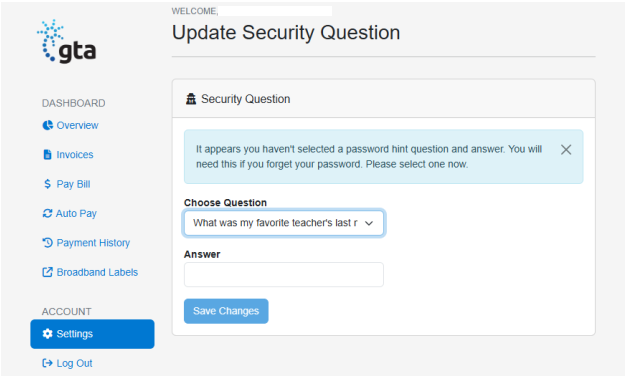
- Once you click on the link, you will be required to update your security question. Once you select the security question and enter your Answer, then click Save Changes.
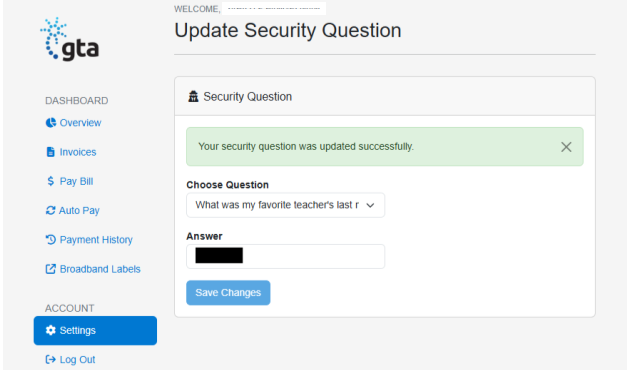
- You should receive a confirmation that your security question was successfully updated.
- Next, click on Settings from the Menu on the left. You will be prompted to update your account password.
myGTA Web Portal Navigation
1. The Overview page displays key account information, including the current balance, pending payments, amount due, and payment status. Use the shortcuts on this page to access Auto Pay, Pay Bill, and Bill Summary.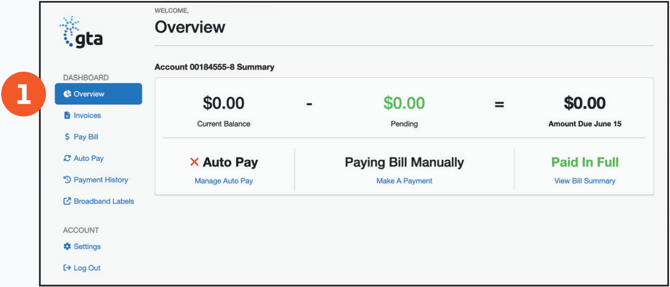
Invoices
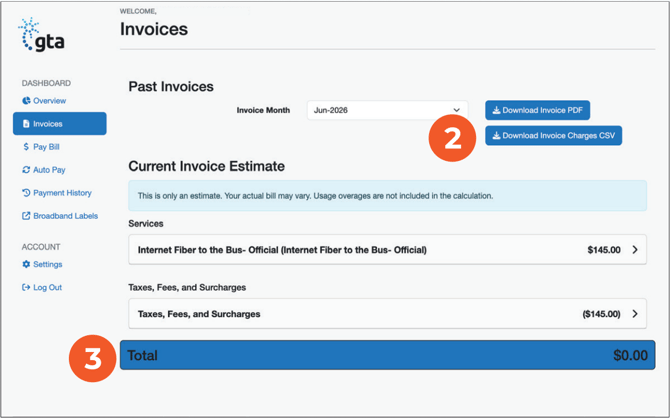
The invoices page provides access to past invoices and shows the estimated current bill. The estimate excludes usage overages, so the final amount may be higher if plan limits are exceeded.
2. Past Invoices - Select an invoice month to view and download invoices as a PDF or export invoice charges as a CSV.3. Current Invoice Estimate - Displays a summary of services and their associated charges, along with applicable fees and surcharges.
Pay Bill
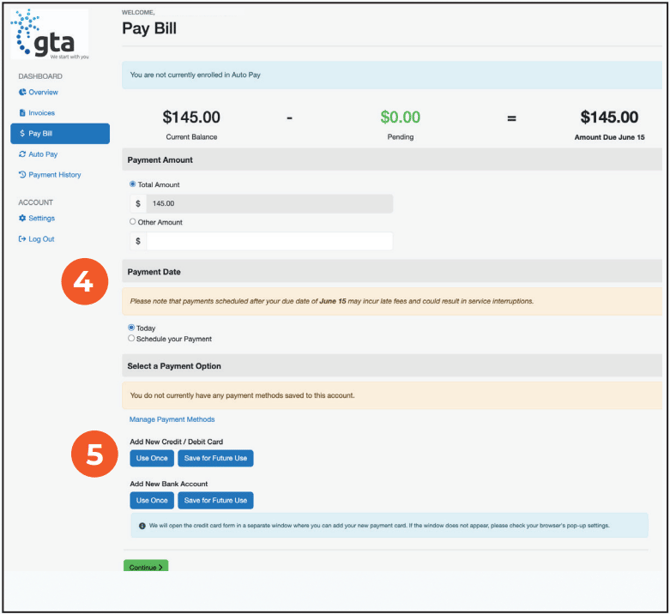
Make a one-time payment or schedule a future payment. Choose the payment amount, select a payment date, and pay using a saved payment method or add a new credit/debit card or bank account.
4. Payments: Other Amount - Entering a partial payment may result in service interruption of the remaining balance is not paid.5. Payment Methods - Select a saved payment method or add a new credit/debit card or bank account. Adding a new credit/debit card opens a separate registration window. new payment methods can be used for a onetime payment or saved for future use.
Auto pay
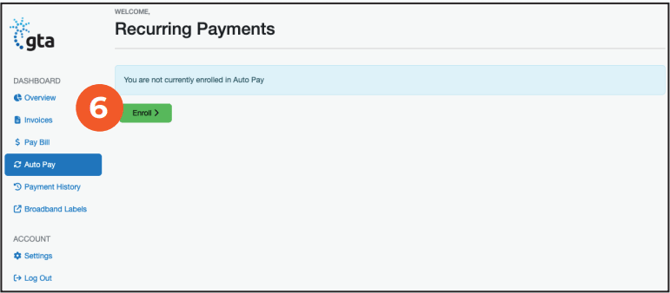
6. Enroll in Auto Pay to have payments automatically deducted on the scheduled date. To Enroll:- Add a payment method.
- Accept the Terms and Conditions.
- Submit your enrollment.
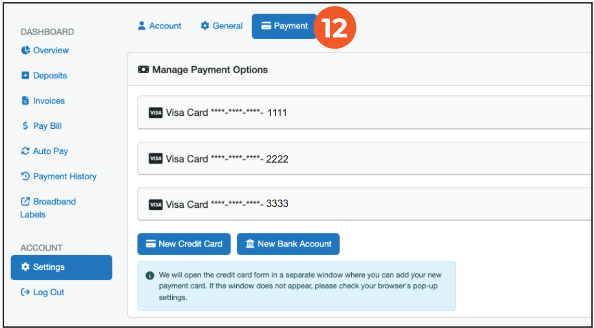
7. Select Payment Option - Add payment methods, including credit/debit cards and bank accounts. If no window appears, enable browser pop-ups. 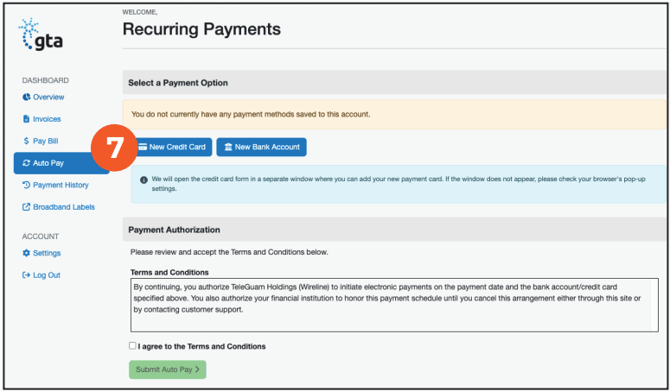
Payment History
8. View scheduled, pending, and completed payments, including payment dates, payment methods, and amounts.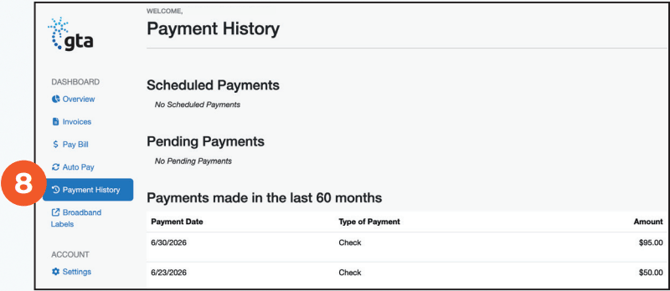
Broadband Labels
9. View Broadband Labels for detailed information about subscribed services, including pricing, features, and service details.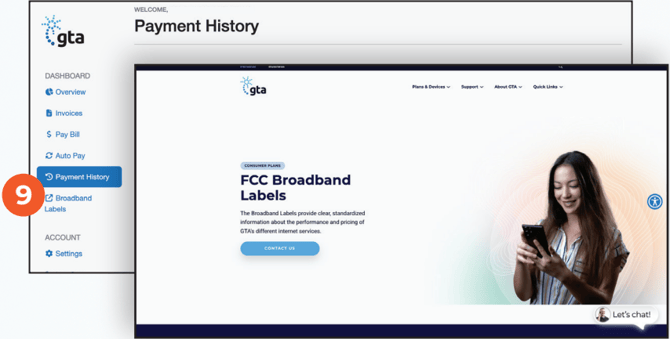
Settings
Manage account information, contact details, notification preferences, payment methods, web access, and security settings. Update passwords, eBill usernames, security questions, and link additional accounts for easier account management.
10. Account - Manage account contact information, billing address, communication preferences, and notification preferences in this section.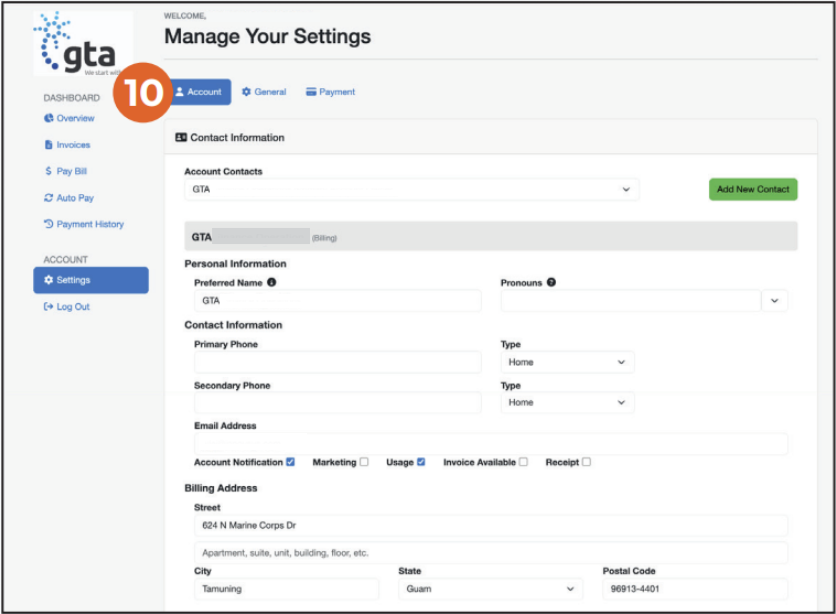
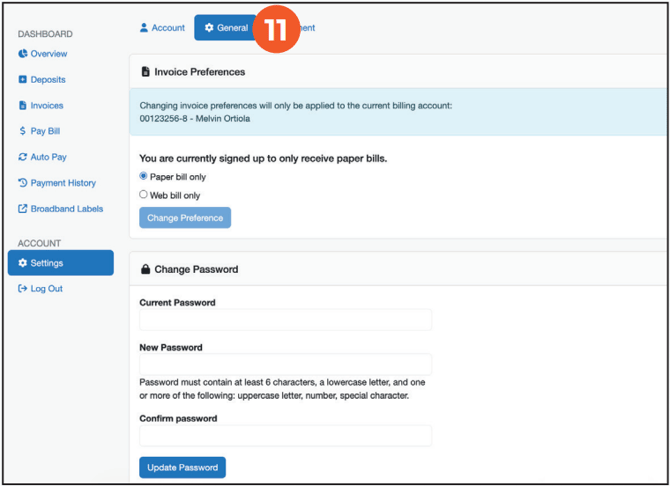
11. General - Update account credentials by changing the password, eBill username, corresponding email addresses, and security question to help keep the account secure.
12. Payment - Add payment methods, including credit/debit cards and bank accounts. If no window appears, enable browser pop-ups.