![GTA-Full-white-logo-wo-strapline-RGB.png]](https://www.gta.net/hs-fs/hubfs/Logos/GTA-Full-white-logo-wo-strapline-RGB.png?height=40&name=GTA-Full-white-logo-wo-strapline-RGB.png)
Setting Up Parental Controls
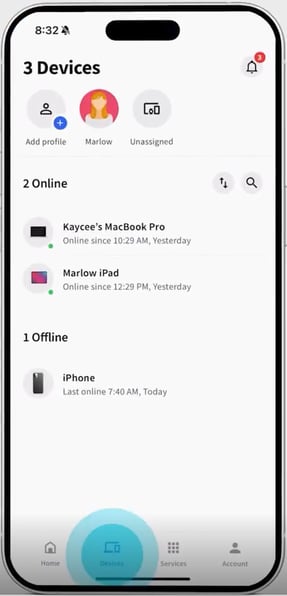
- To set up Parental Controls, go to the Devices tab and tap on an individual profile.
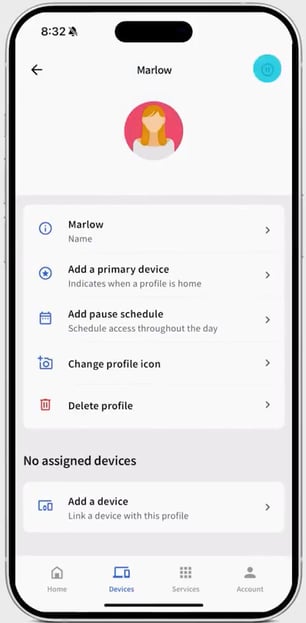
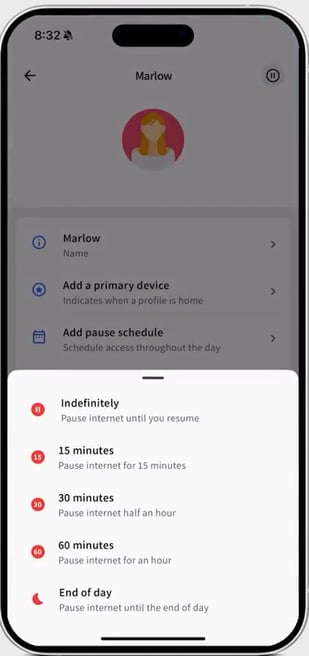
- At the top right corner, you can tap on the Pause icon to pause your child's device at any time.
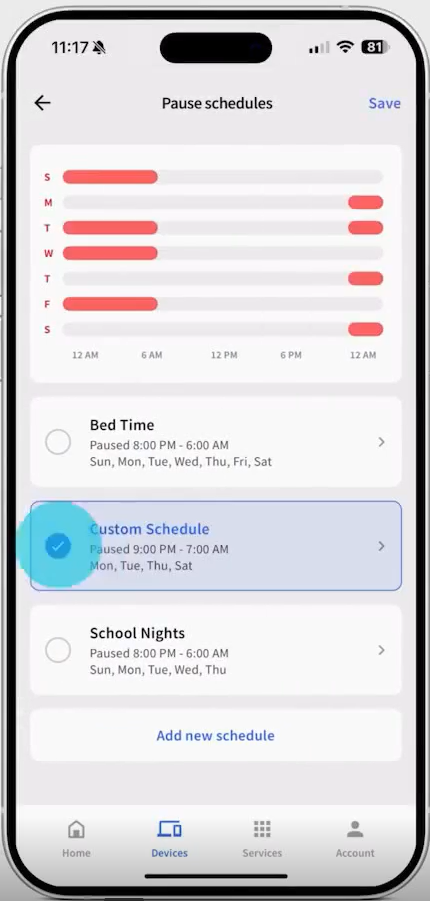
- If you want to set device time limits on a recurring schedule, go to the child's profile and tap Add Pause Schedule.
- There are a few predefined schedules to choose from, but you can customize any one of them to create the schedule you want.
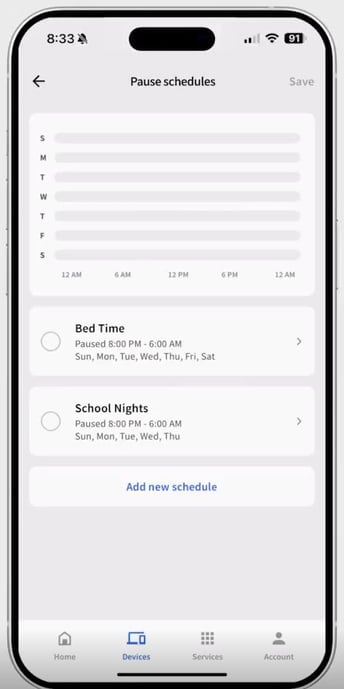
- To customize a schedule, select the Add New Schedule option.
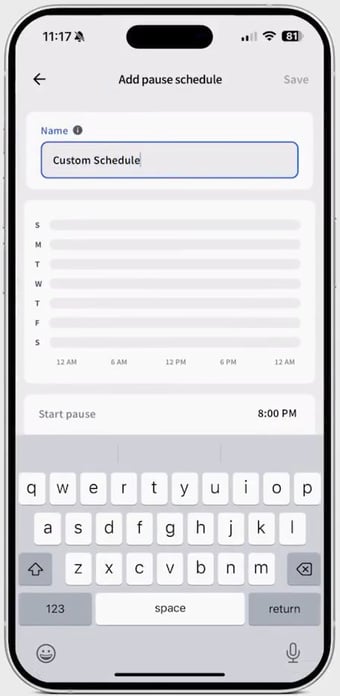
- After naming the schedule, simply choose the Start and Stop times for the pause and the days of the week you'd like the pause to take effect.
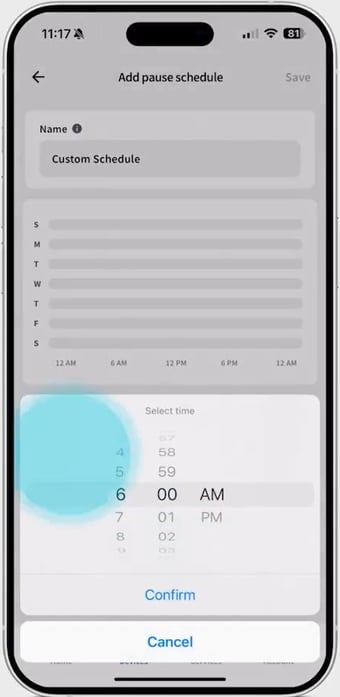
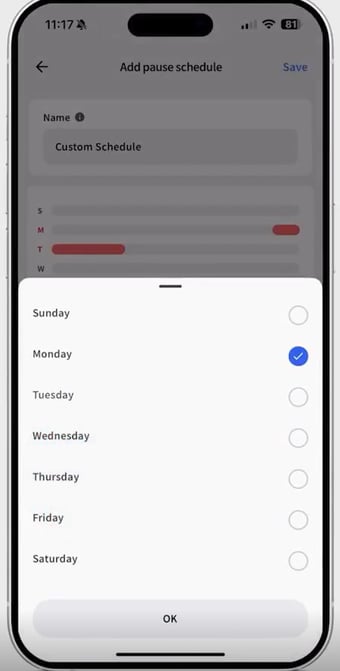
- There are a few predefined schedules to choose from, but you can customize any one of them to create the schedule you want.
- To implement the new schedule, select it from the Pause Schedules screen then click Save.
- Assigning a primary device to each child's profile, allows you to monitor device usage and receive an alert every time their device comes in or out of your home.
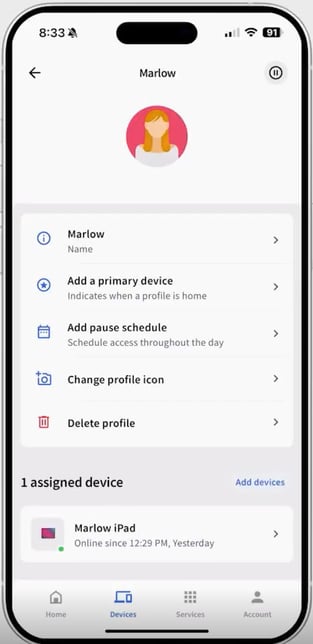
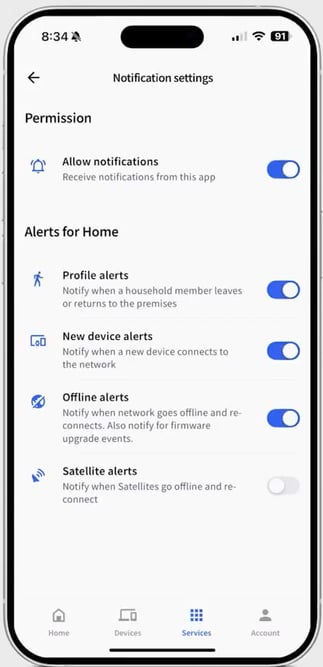
- First, go to your child's profile and tap Add a primary device, then go to the Services tab at the bottom of your screen and tap the notification bell icon.
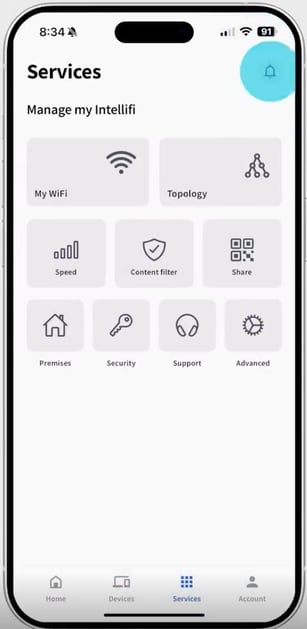
- You can choose from a list of alerts that will notify you when a device leaves or returns home, when a new device connects to the network, and more!
- For more parental controls, go to the Service tab and tap Content filter.
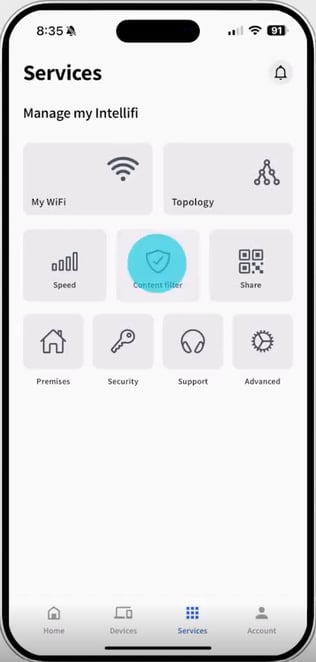
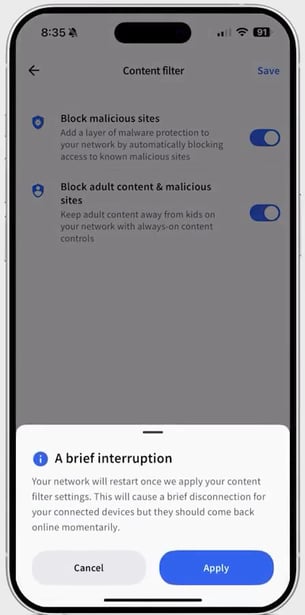
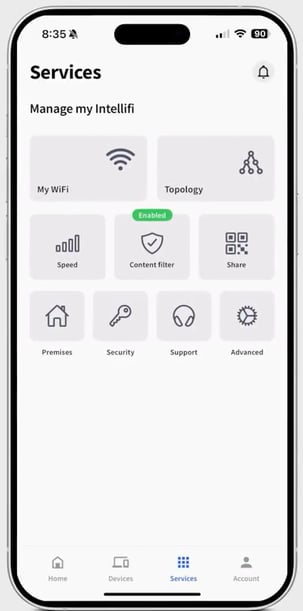
- Protect your entire home network with always-on content controls that block malicious websites and help keep adult and inappropriate content away from kids—providing safer, more secure browsing for the whole family.
- If ever you need additional help/assistance, you can go to the Services tab and tap the Support icon to contact Customer Service.