![GTA-Full-white-logo-wo-strapline-RGB.png]](https://www.gta.net/hs-fs/hubfs/Logos/GTA-Full-white-logo-wo-strapline-RGB.png?height=40&name=GTA-Full-white-logo-wo-strapline-RGB.png)
Watch this short video on how to create profiles and view network usage with the Service Delivery Gateway.
View Devices Connected to Your Network
- On the bottom of your screen, you'll see the Devices tab.
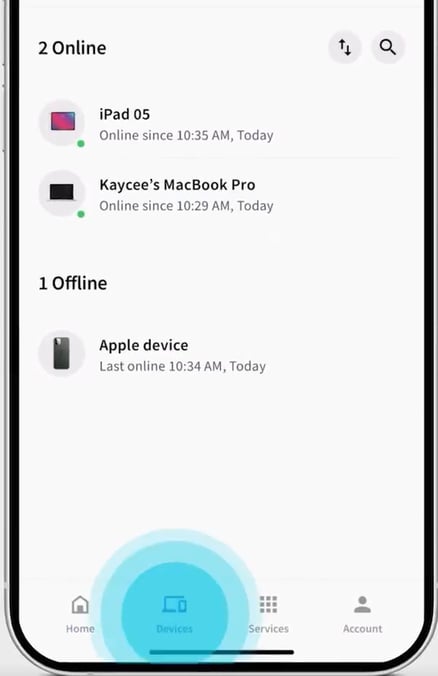
- Click on the Devices icon to see a list of connected devices.
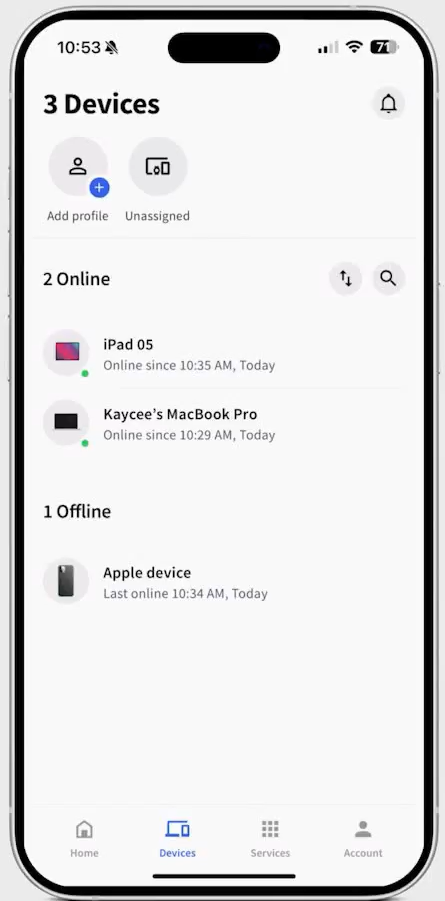
- The app automatically identifies devices and shows the ones that are online or offline.
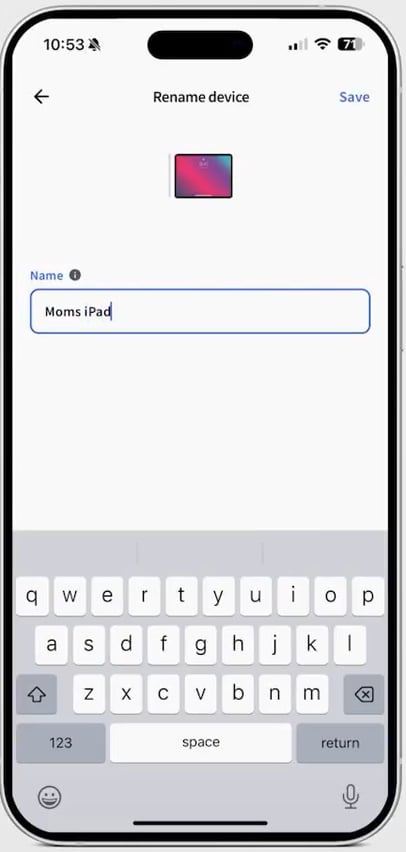
- Click on one of the devices and rename it to a more identifiable name (e.g. Moms iPad).
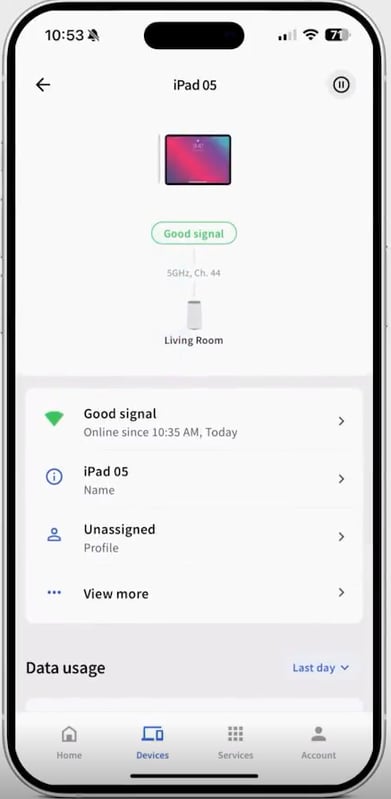
- If you see a device that you don't recognize, you can also block that device.
Creating an Account
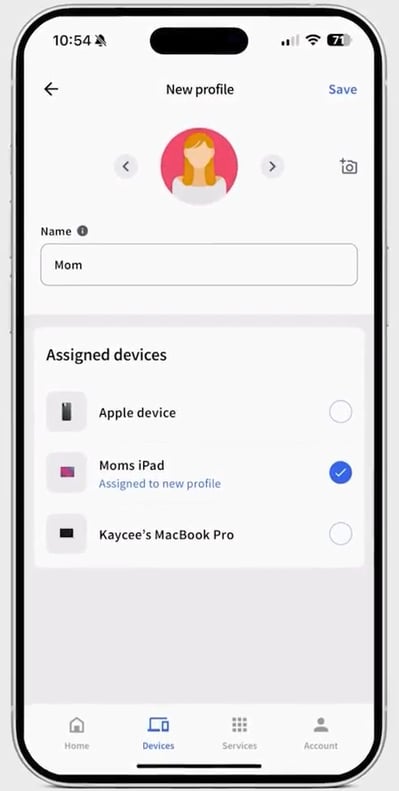
- You can create profiles for everyone in your home and assign devices to each person. This allows you to categorize users and assign profiles for kids or device types.
- To create a new profile, tap the "+" sign icon on the top left of the screen.
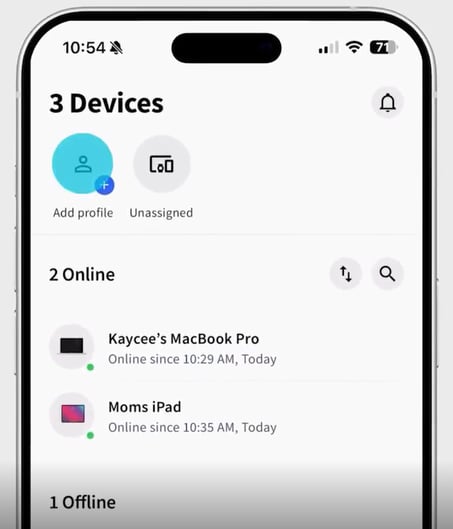
- Start by inputting the person's name or nickname.
- Assign devices to that user and even add a profile picture, if you want to.
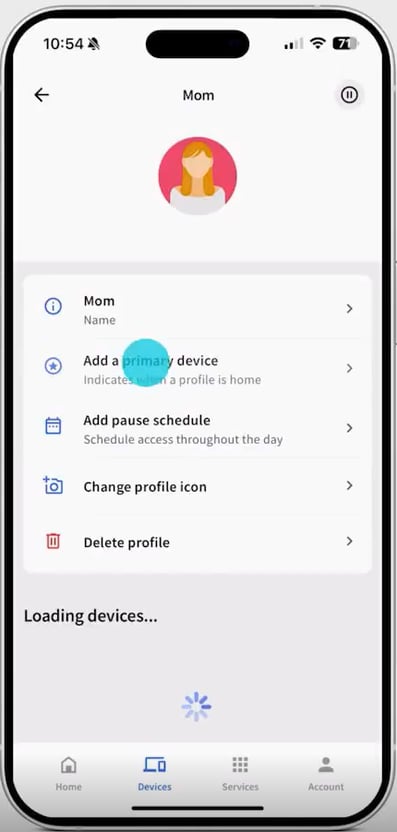
- You can assign a primary device to a user or profile.
- Push notifications let you know when a device leaves or rejoins the network.
- This presence feature is helpful to when a person is leaving or arriving home, ideal to know when kids are back.
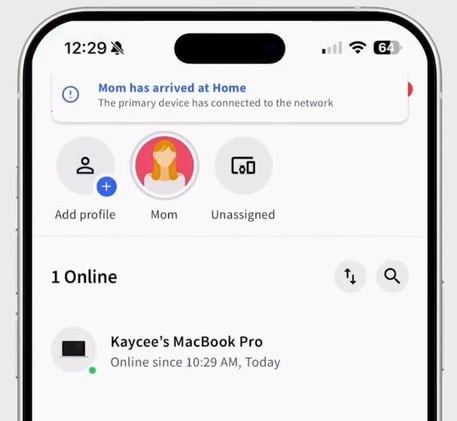
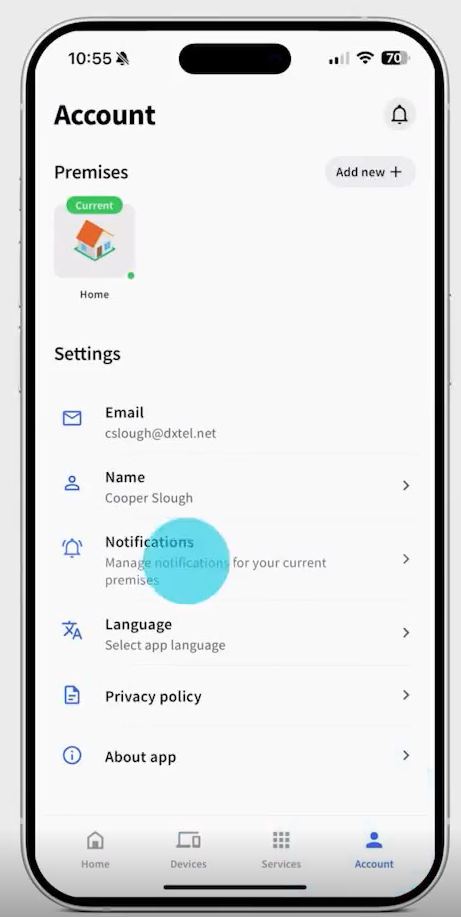
- You can toggle push notifications on or off by clicking on the account tab and clicking on the notifications setting.
- This presence feature is helpful to when a person is leaving or arriving home, ideal to know when kids are back.