![GTA-Full-white-logo-wo-strapline-RGB.png]](https://www.gta.net/hs-fs/hubfs/Logos/GTA-Full-white-logo-wo-strapline-RGB.png?height=40&name=GTA-Full-white-logo-wo-strapline-RGB.png)
Sign into your GTA Popup Prepaid account.
Home
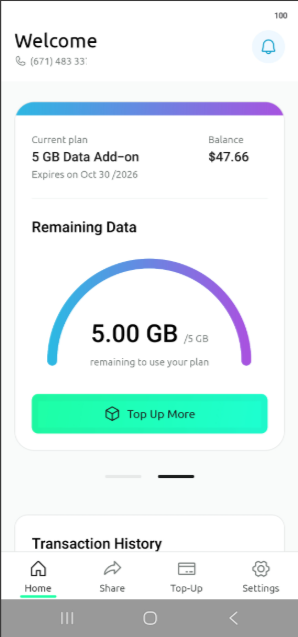
Your Home page will display a brief summary of your current plan, balance, and most recent transaction history.
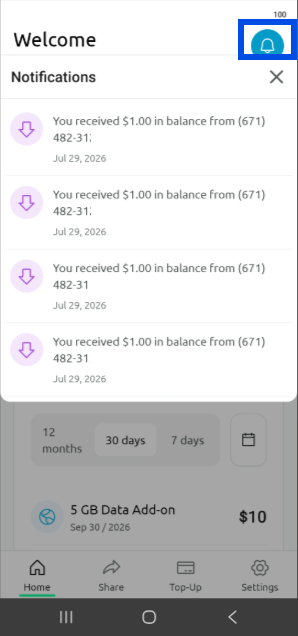
Notification Icon
The notification bell icon (located at the top right corner of the Home page) displays the most recent notification activity, such as receiving load/balance from another GTA prepaid subscriber.
Transaction History
Transaction history can display your prepaid activity from the past 12 months, 30 days, or 7 days.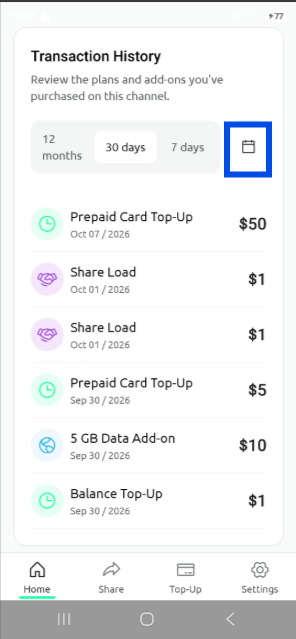
Alternatively, you can select custom date ranges using the provided calendar icon. Once you've selected the date range, select Apply. 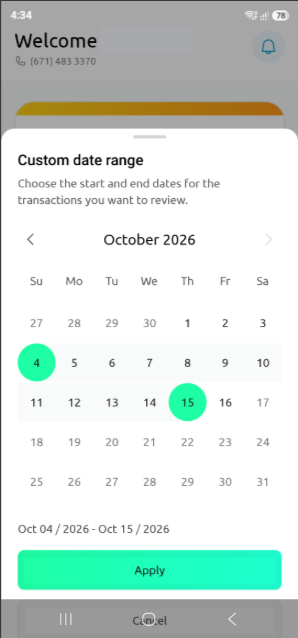
Share
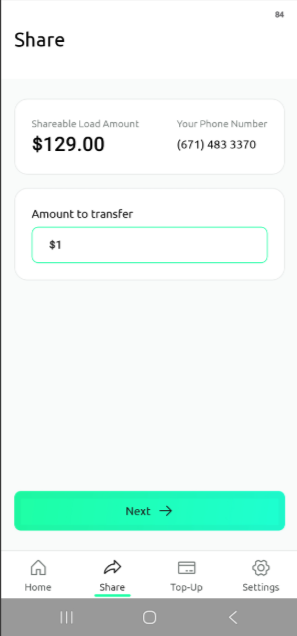
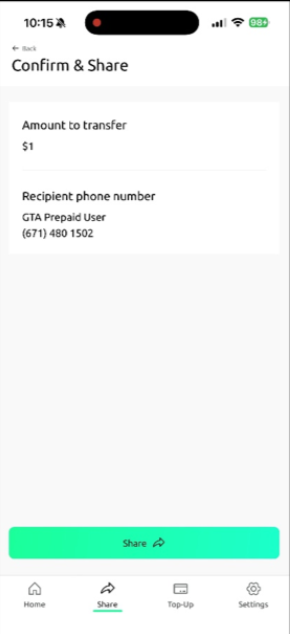
The Share screen displays your shareable load amount and your prepaid for number. You can use this screen to share load with other GTA prepaid subscribers in 3 easy steps.
- Enter the Amount you will be transferring/sharing. Please note that you can only share/transfer whole dollar amounts. Once confirmed, select Next.
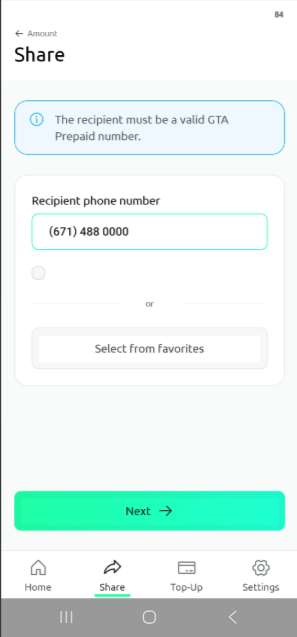
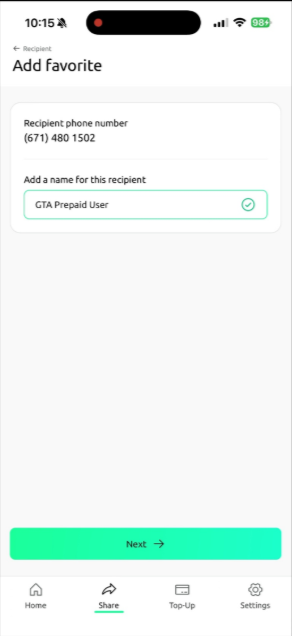
- Enter the recipient phone number, then select Next. The recipient must be a valid GTA Prepaid number. You can also add a recipient to your "favorites" list for quicker transfers by pressing on the button before Save as favorite. Then press Next.
-
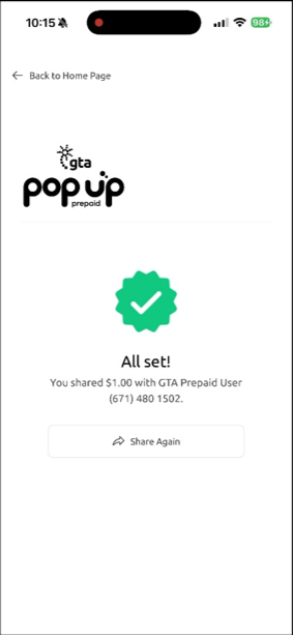
Confirm the amount you would like to share, then select Share. Once complete you will receive a confirmation screen stating your load share was successful.
Top-Up
The Top-Up screen will display your current plan and expiration date. Below your plan summary is an Add load to Balance button you can select to add load. 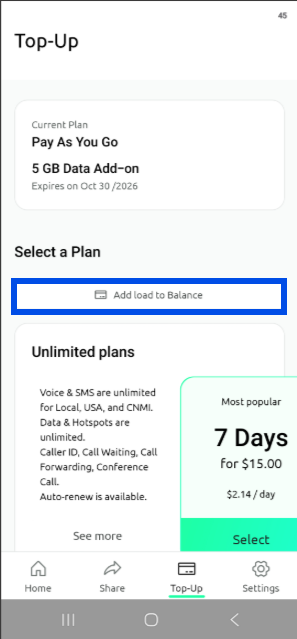
Buying Prepaid Plans
Also, in the Top-Up screen you can purchase GTA prepaid unlimited plans and data add-on plans. 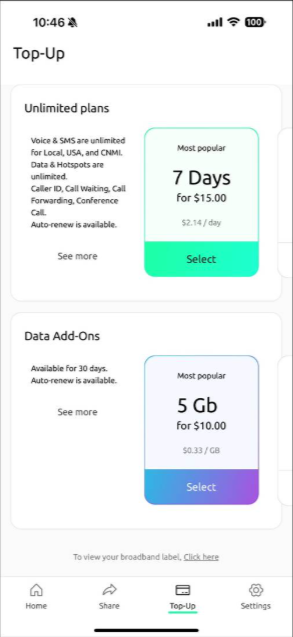
Adding Load
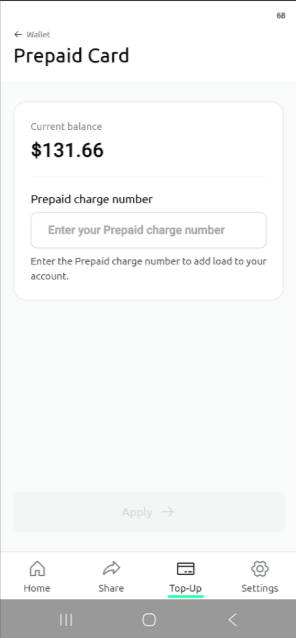
When you select the Add load to Balance button, you can choose to enter an amount to add using a debit/credit card or use a Prepaid card.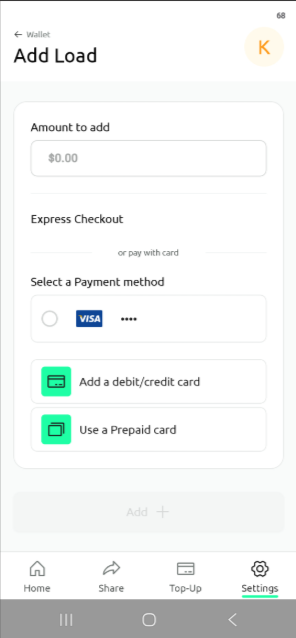
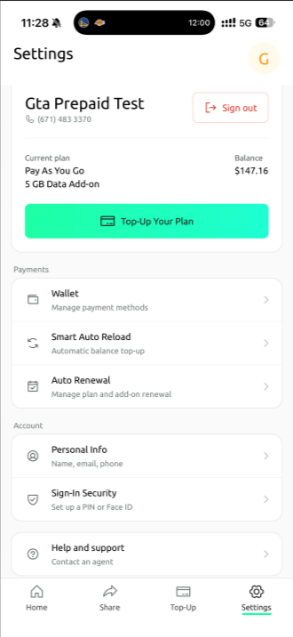
Settings
The Settings screen allows you access Top-Up Your Plan, manage payment methods, setting up Smart Auto Reload, managing plan auto renewals, edit personal data, set up a PIN or Fingerprint/Face-ID, and contact an agent with the Help & Support button.